
Browser-based Real-time Privacy-first
Gamepad Tester
Use Gamepad Tester to run a full controller test online. Check buttons, triggers, joysticks, stick drift, deadzones, and vibration support directly in your browser.
No controllers connected.
Connect the controller via USB or Bluetooth
and press any key
Quick start
How to Use Gamepad Tester Online
- 1
Connect your controller
Plug in via USB or pair over Bluetooth.
- 2
Press any button
One press wakes detection — the tab flips from Not Found to your controller's name.
- 3
Test every button
Every press lights up live — a button that never registers is likely faulty.
- 4
Rotate the joysticks
Rotate fully to check range, then release — a stick resting off-center has drift.
- 5
Run the vibration test
Fire a single burst or loop infinite vibration and feel the motors respond.
Controller not showing up? See the troubleshooting tips
Introduction
Gamepad Tester is a browser-based controller diagnostic that shows the input data your browser receives. Use one dashboard to inspect buttons, triggers, joystick position, drift, deadzones, and available vibration controls.
Why Use This Gamepad Tester?
Gamepad Tester reads the standard Gamepad API and displays its values in real time on Windows, macOS and Linux. Use the live view to confirm whether buttons, sticks, triggers, and supported vibration features respond as expected.
Cross-Platform
Use Gamepad Tester in supported desktop browsers without installing extra software. Compare current browser capabilities in the compatibility table below.
Instant Feedback
Gamepad Tester visualises each press the moment it happens.
Drift Detection
Gamepad Tester shows raw left and right-stick offsets at rest, so unexpected movement is easier to spot.
Multi-Controller Support
Connect up to four gamepads at once and monitor them side by side.
What this gamepad tester checks
Button Response Test
Gamepad Tester lights up every face, shoulder and trigger input so you can confirm pressure, travel and simultaneous presses using this controller test.
Stick Drift & Deadzone Scan
Spin both thumb-sticks through full range; Gamepad Tester traces the live stick path and circularity error, and raw axis values show whether small offsets would hide inside a typical in-game deadzone.
Vibration & Rumble Check
Activate a single burst or continuous rumble; this vibration controller test lets you judge motor strength by feel.
Supported Controllers
Test compatible controllers from Sony, Microsoft, Nintendo, and common PC controller families.
-
Xbox Series & Xbox One
face buttons, bumpers, sticks and analog triggers charted in real time. Impulse trigger rumble can be tested in Chrome and Edge.
-
PS5 DualSense
every button, stick, trigger and the touchpad click charted live. Basic rumble works in supported browsers, while adaptive-trigger effects remain native-only.
-
Generic PC gamepads
compatible with most XInput and DirectInput devices from major brands. Gamepad Tester reports rumble compatibility and D-pad diagonals.
-
PS4 & PS3
wired or Bluetooth testing for DUALSHOCK 4 buttons, sticks, triggers and rumble. Older DUALSHOCK 3 pads often need extra drivers before a browser can detect them.
-
Switch Pro
full button and stick testing over USB or Bluetooth in Chrome and Edge. Motion sensors are not exposed to browsers, so use the Switch system calibration for gyro checks.
Need a deeper check?
More focused controller tests
The Gamepad Tester above already runs a full controller test. Use these focused pages when you want a dedicated layout for stick drift, joystick range, button input, vibration, or a specific Xbox, PlayStation, or PC controller. View all tools

Use an Xbox-specific layout for Xbox One, Xbox Series X|S and compatible PC controllers.

Use a DualSense-specific layout for PS5 controllers connected to your browser.

Use a DUALSHOCK 4 or DS4-specific layout for PS4 controllers connected to your browser.

Open a dedicated input view for buttons, D-pad, triggers, and raw controller values.

Inspect stick movement, range, center position, and deadzone behavior in a focused joystick view.
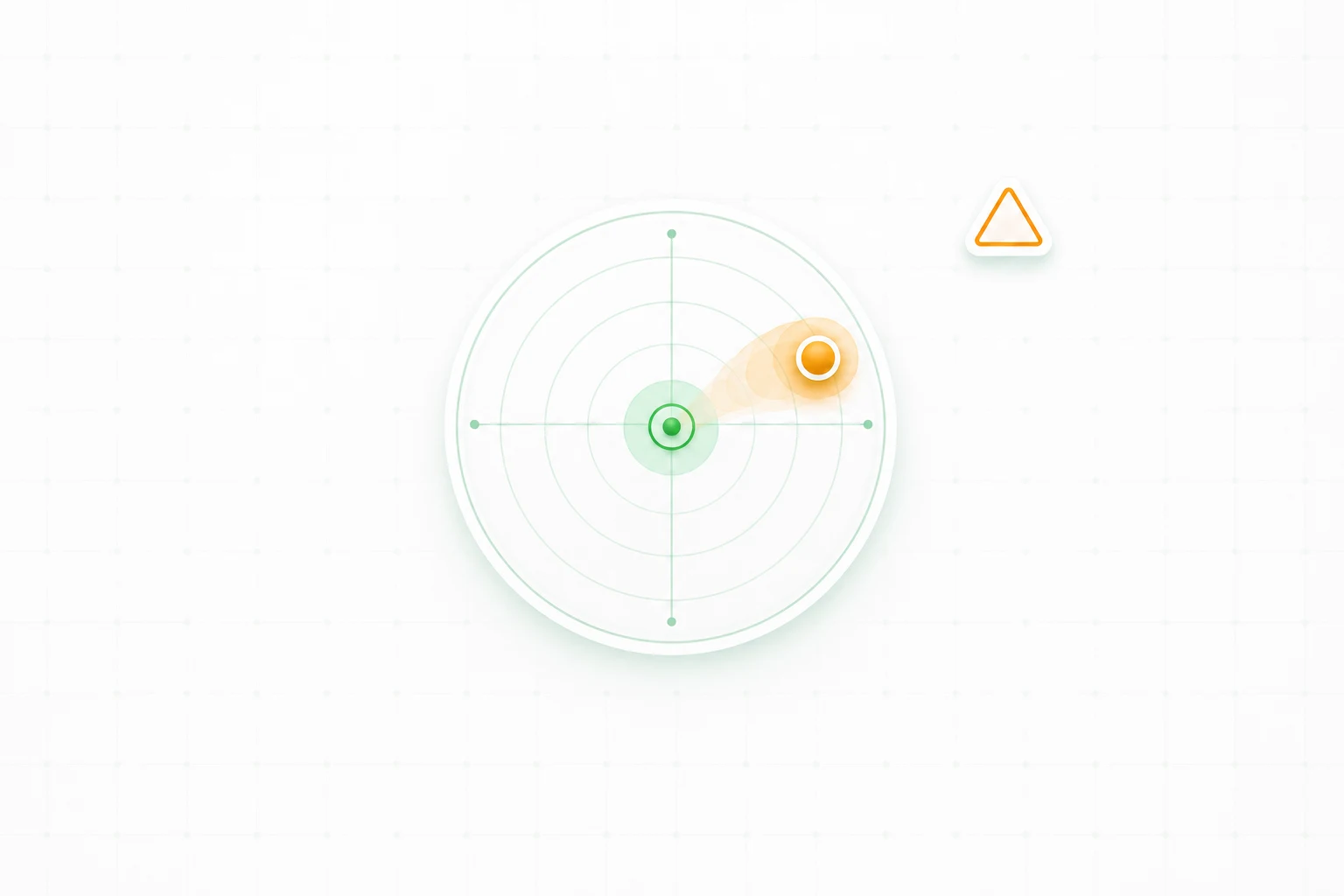
Use a dedicated drift checker when a stick moves by itself, fails to stay centered, or causes unwanted movement.

Test rumble or haptic feedback in a focused vibration panel where supported by your browser and controller.
Troubleshooting Tips
Close exclusive-mode apps like Steam Big Picture if Gamepad Tester cannot detect your pad on Windows.
On macOS, Chrome and Edge give the most complete results. Safari 16.4+ also supports vibration tests, while Firefox reads inputs but cannot trigger rumble.
If vibration fails to start, ensure the browser tab is focused and that system accessibility settings allow haptic feedback.
Compatibility
Which tests will your browser run?
Everything here runs on the HTML5 Gamepad API, the standard every browser uses to read controllers. Detection, buttons, triggers, and sticks work in every browser below — vibration is where they diverge.
| Feature | Desktop | Mobile | |||||
|---|---|---|---|---|---|---|---|
 Chrome on desktop Chrome on desktop |  Edge on desktop Edge on desktop |  Firefox on desktop Firefox on desktop |  Safari on macOS Safari on macOS |  Chrome on Android Chrome on Android | Firefox on Android |  Safari on iOS and iPadOS Safari on iOS and iPadOS | |
| Detection & inputDetects the controller and reads its buttons, analog triggers, and stick movement. | Supported35+ | Supported12+ | Supported29+ | Supported10.1+ | Supported35+ | Supported32+ | Supported10.3+ |
| Dual-motor rumbleStandard vibration using the controller's strong and weak rumble motors. | Supported68+ | Supported79+ | Not supported | Supported16.4+ | Supported68+ | Not supported | Not supported |
| Trigger rumbleVibration from motors built into the triggers, not adaptive-trigger resistance. | Maybe126+ | Maybe126+ | Not supported | Unknown | Maybe126+ | Not supported | Not supported |
- Supported
- Maybe
- Not supported
Maybe: The browser supports gamepad haptics, but trigger rumble is not guaranteed. It depends on the controller, connection, and driver.
What no browser can test
A few things you might expect to test aren’t exposed to any browser by the Gamepad API. Switching browsers won’t reveal them.
-
Gyroscope and accelerometer
Gyro and accelerometer aiming — the API sees only buttons and axes.
-
Battery level, firmware version, and calibration data
No charge level, firmware version, or stored calibration data.
-
Connection mode, driver state, and which app owns the controller
USB or Bluetooth, drivers, Steam Input — none of it reaches the browser.
-
Adaptive-trigger resistance
Trigger stiffness DualSense games apply to L2 / R2 — native games only.
Advanced Calibration Advice
For deeper analysis, watch the numeric axis and button gauges while slowly sweeping sticks to the edges. Consistent flat spots or delayed changes can indicate worn potentiometers or trigger sensors.
Regular cleaning with compressed air and isopropyl alcohol can mitigate drift that Gamepad Tester detects.
Sweep each trigger slowly from 0 to 1 and watch the button gauges; jumps, plateaus, or values that never reach 1.00 can indicate a worn trigger sensor.
Frequently Asked Questions
Is Gamepad Tester safe to use?
How can I measure stick drift accurately?
Why isn't my controller recognised?
Can I test button latency?
Can I use Gamepad Tester on Android or iOS?
Does Gamepad Tester work on Linux?
What does the deadzone percentage mean?
Can I run a full controller test on this page?
Ready to Test Your Controller?
Connect your controller and check buttons, sticks, drift, deadzones, and vibration support in one live dashboard.