
DualSense Buttons
Check the D-pad, Create, touchpad press, Options, Triangle, Circle, Cross, Square, L3, R3, PS, Mute, L1, L2, R1 and R2. Labels follow the layout diagram. View button names .
Test your DualSense controller online in seconds. Use this free PS5 controller tester to check buttons, triggers, joysticks, stick drift and vibration support directly in your browser.
This page is designed for quick DualSense diagnostics. It helps you confirm whether your browser can detect the controller and whether the core inputs behave as expected.
Check the D-pad, Create, touchpad press, Options, Triangle, Circle, Cross, Square, L3, R3, PS, Mute, L1, L2, R1 and R2. Labels follow the layout diagram. View button names .
Pull L2 and R2 slowly to confirm that both analog triggers report smooth values without sticky travel, missing range or input jumps.
Move the left and right sticks in circles, diagonals and short taps. If a stick moves while untouched, run a deeper stick drift test .
Run a basic vibration test to confirm the controller responds to simple browser rumble commands. For more vibration modes, use the Controller Vibration Test .
Tap buttons repeatedly and move sticks while watching for missing input, delayed reactions, connection drops or obvious input lag.
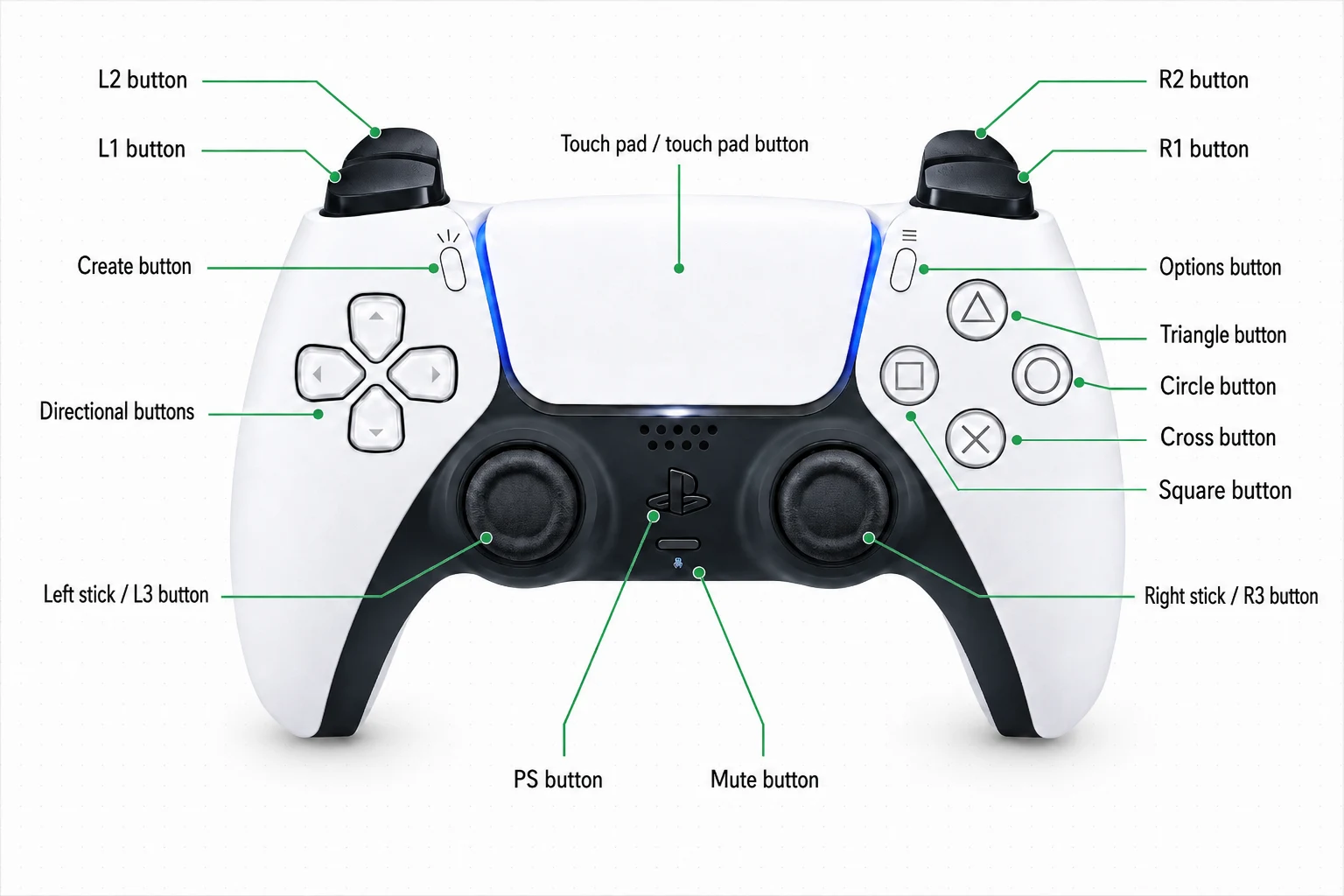
A PS5 controller can be used on PC through USB-C or Bluetooth. This online test helps you verify the basic input layer before opening Steam, a launcher, a game or a remapping tool.
Use USB-C for the cleanest baseline, or pair over Bluetooth when you need wireless play. Follow the official PlayStation connection guide for USB and Bluetooth setup steps.
This page checks the basic browser input layer. Steam, drivers and native games may expose advanced haptics, adaptive triggers and speaker output; see the test limits for the features a browser cannot verify.
This page can verify PS5 controller inputs, but it cannot play audio through the DualSense speaker. The browser Gamepad API exposes controller input; it does not provide speaker output or speaker control.
Speaker and microphone support depends on the operating system, connection mode, and the game or app, so use a supported game or system audio setting for audio checks.
See more test limits .
Because browser Gamepad API access and device compatibility vary, the following PS5 controller features cannot be tested here.
This page supports only basic DualSense rumble. It cannot test advanced haptic feedback effects.
L2 and R2 input depth can be checked, but trigger resistance and game-specific adaptive effects cannot be tested here.
The touchpad button can be checked, but 2D touch position, swipes and multi-touch gestures are not available here.
Gyroscope, accelerometer and motion sensor data are outside this basic browser controller test.
Light bar control and controller battery level are not exposed in this tester.
Speaker output, microphone input, headset jack audio and audio routing cannot be tested here.
Use these checks to narrow the issue before assuming the controller is broken.
Reconnect the controller, press any button, refresh the page and try USB-C. Some browsers do not expose a gamepad until the first button press. For device-level pairing, use PlayStation's official USB and Bluetooth setup guide .
If one button never appears in the test, try another cable or USB port, close remapping tools, and compare the result in a game. If the button stays unresponsive, reset the controller and use PlayStation's official DualSense troubleshooting page for button or analog stick issues.
Yes. This PS5 controller tester runs in your browser. Connect your DualSense controller by USB-C or Bluetooth, press any button, then check buttons, triggers, sticks, drift behavior and supported vibration without installing an app.
Connect the controller with USB-C or pair it over Bluetooth, open this page in a modern desktop browser, press any button, then test each button, trigger and stick. For the most reliable baseline, start with USB-C.
Yes. This page shows live stick position, so you can move each stick, release it, and check whether it returns near center or moves while untouched. For a more detailed PS5 controller drift test, use the dedicated stick drift page.
You can run a basic browser vibration check when the browser, connection mode and controller expose haptic feedback. Advanced DualSense haptic feedback and adaptive trigger effects usually require a supported game, Steam or native software.
You can watch for delayed or missed input, but this page is not a precise latency measurement tool. For exact input latency, use dedicated hardware or native testing software.
Not through the browser Gamepad API. Use this page to verify controller connection and inputs, then test DualSense speaker audio in a supported game, app or system audio setting.
The controller may not be exposed until you press a button. Try reconnecting, refreshing the page, using USB-C, closing other controller apps, or switching to a current desktop browser.
Yes. The test runs locally in your browser. It does not need to upload your button presses, stick movement or controller input data to run.